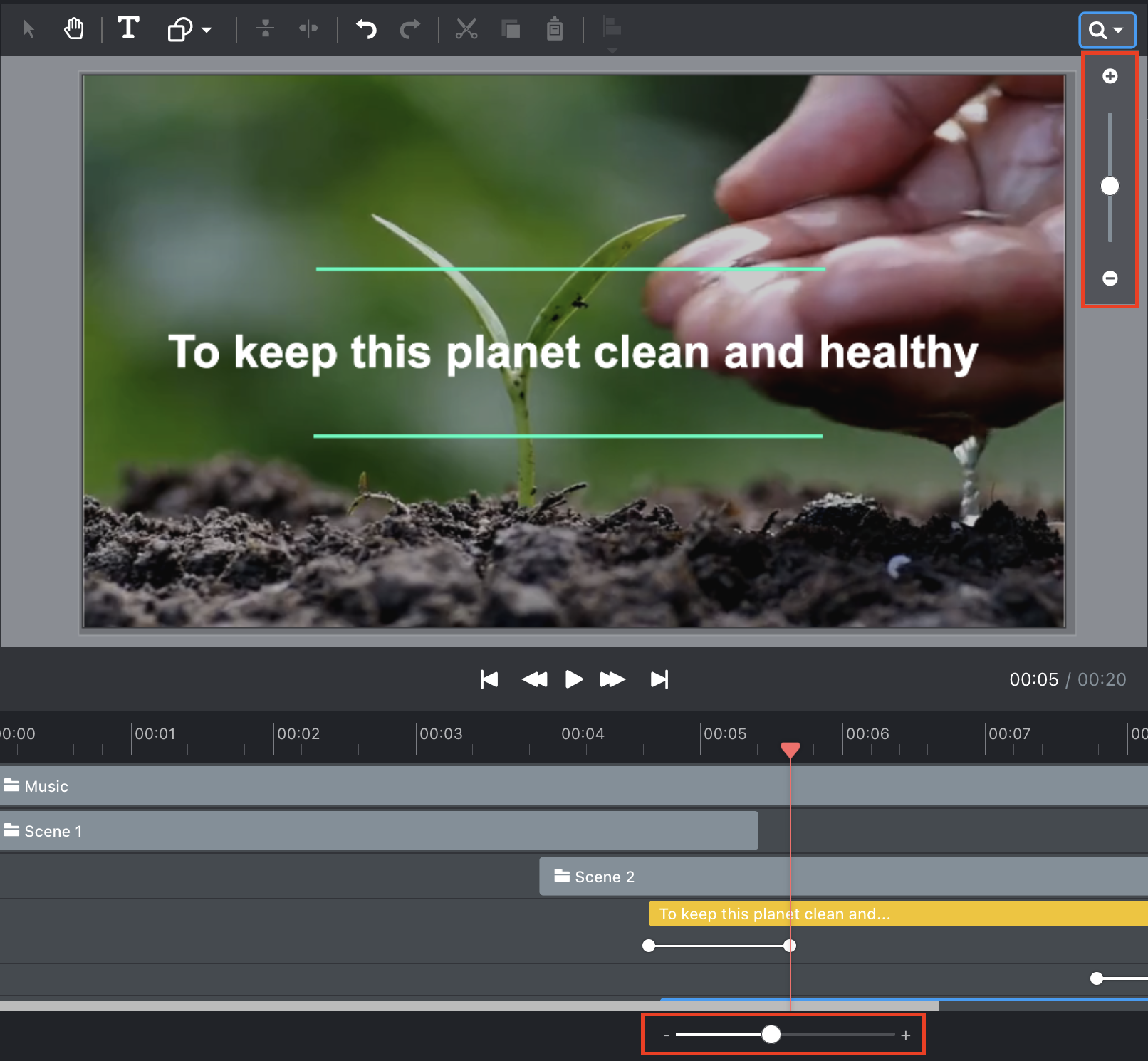
Changing the size of the Library, Stage, Properties panel, and Timeline
When you open the VideoCreator Pro Studio Editor, you get a default view of the Stage, the Library panel, and the Timeline. It is possible to modify the relative sizes of each area for your convenience. For example, if you are focusing on synchronizing objects and their animations in the Timeline, you may want to see a bigger portion of the Timeline.
To change the relative sizes of the different panels, drag the edges left or right, or up or down as follows:
By doing this, you could for example maximize your view of the Library or increase the number of layers you see on the Timeline.
Maximized library view: 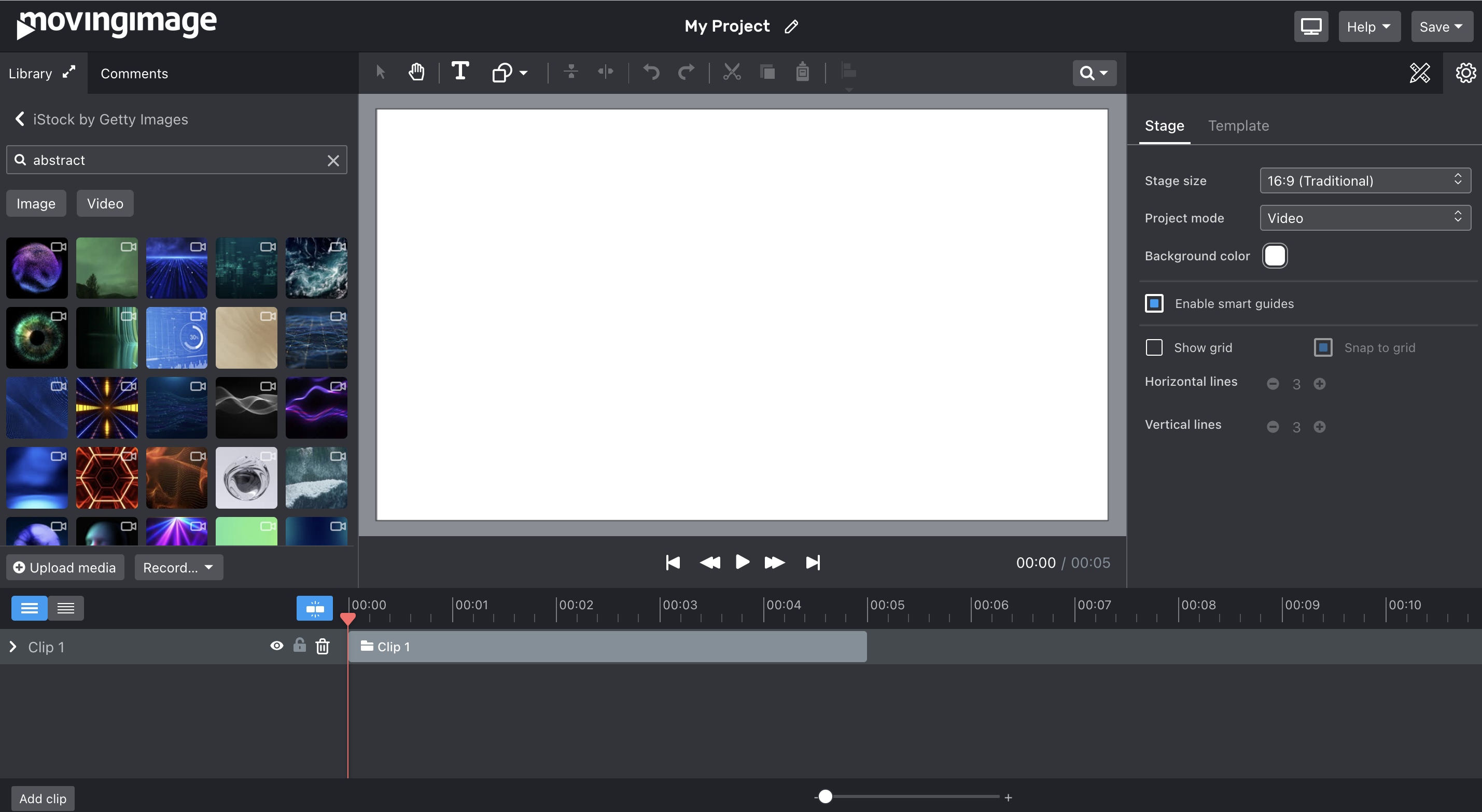
Maximized Timeline view: 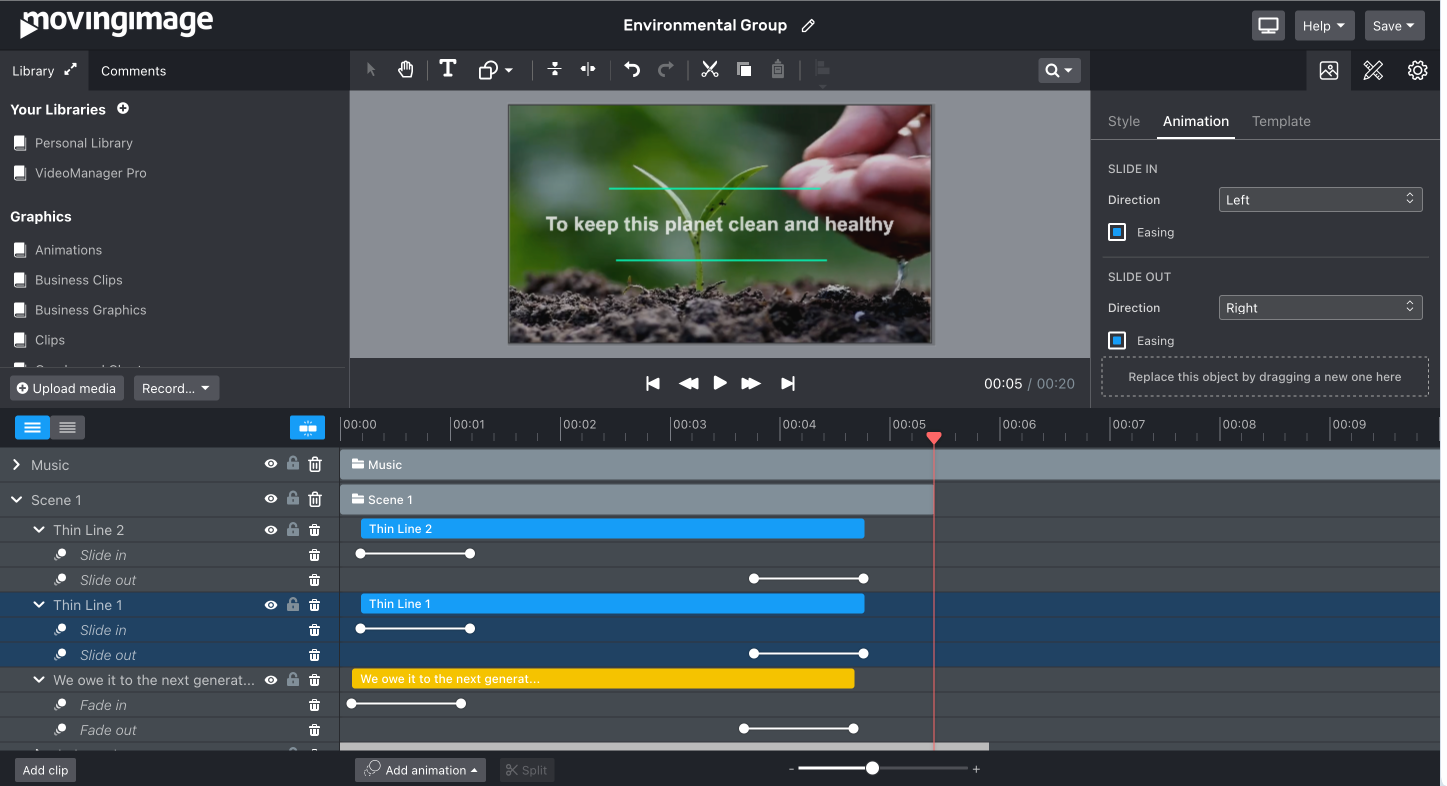
You can also use the zoom functions of the Stage and the Timeline to get a better overview or detailed view of your content.