Template Quick Edit form allows you to customize a template without going the editor. You can create videos faster and easier!
Here are some fields that you need to fill in when using the Quick Edit form:
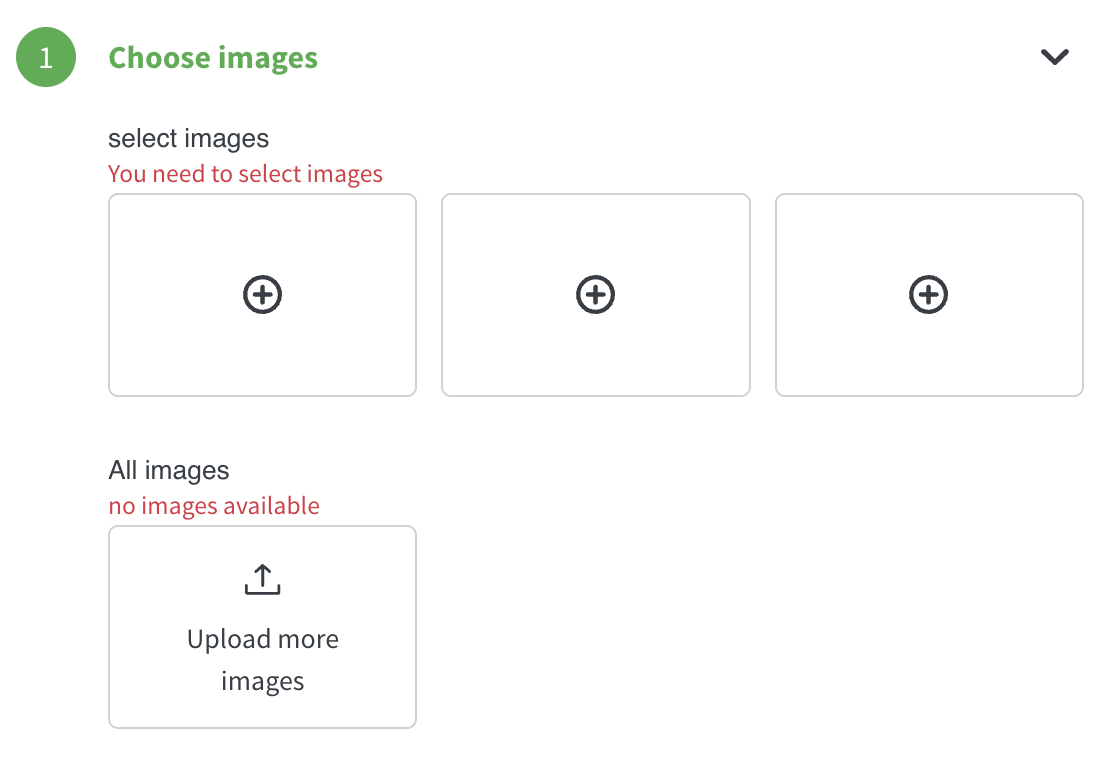
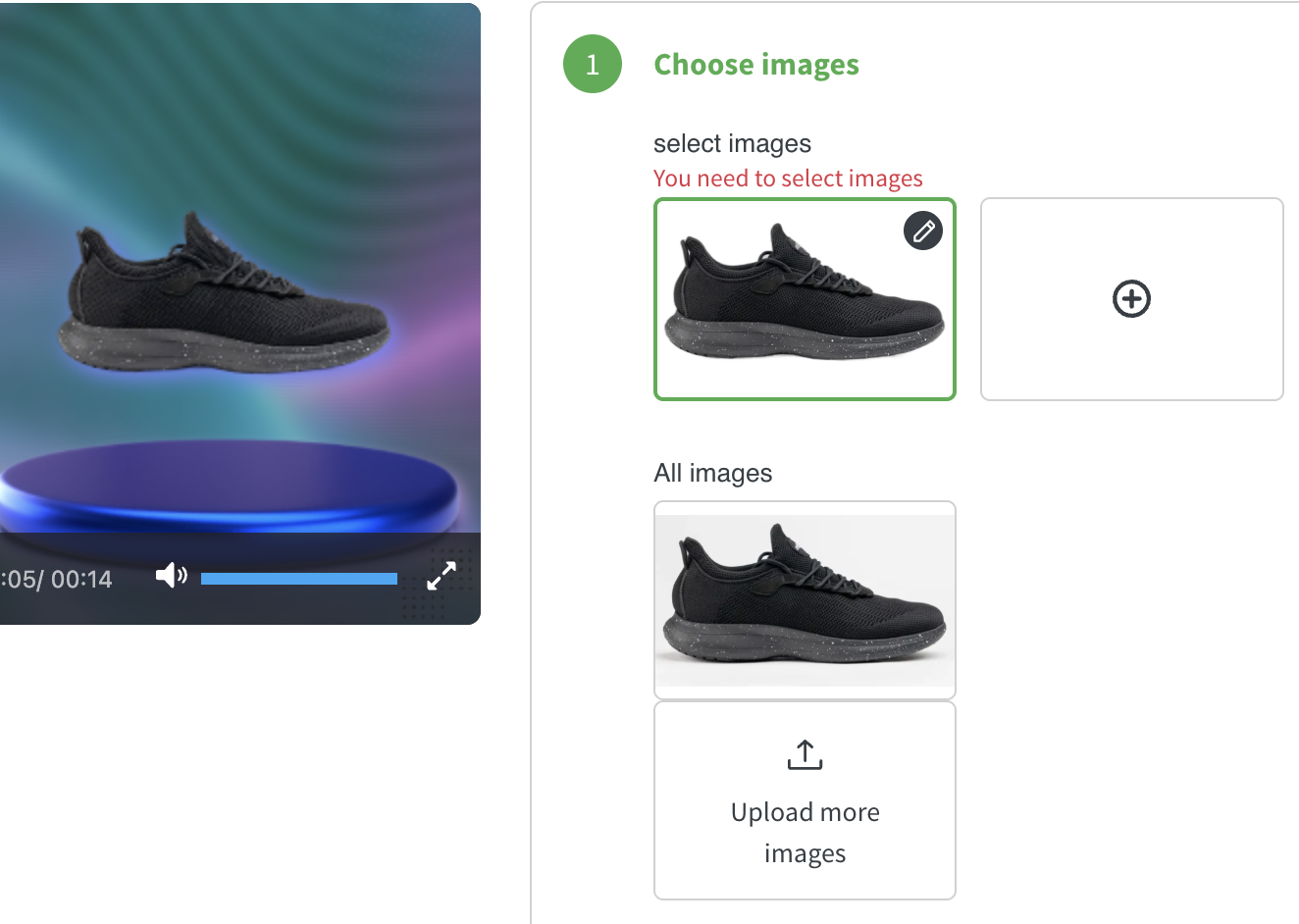
1. Images - This can be a product image or any other image for your content. Once an image is uploaded, you can click on the pencil icon to remove the background
2. Texts - This includes product name, description, price, subtitle, call-to-action text, or an optional subtext.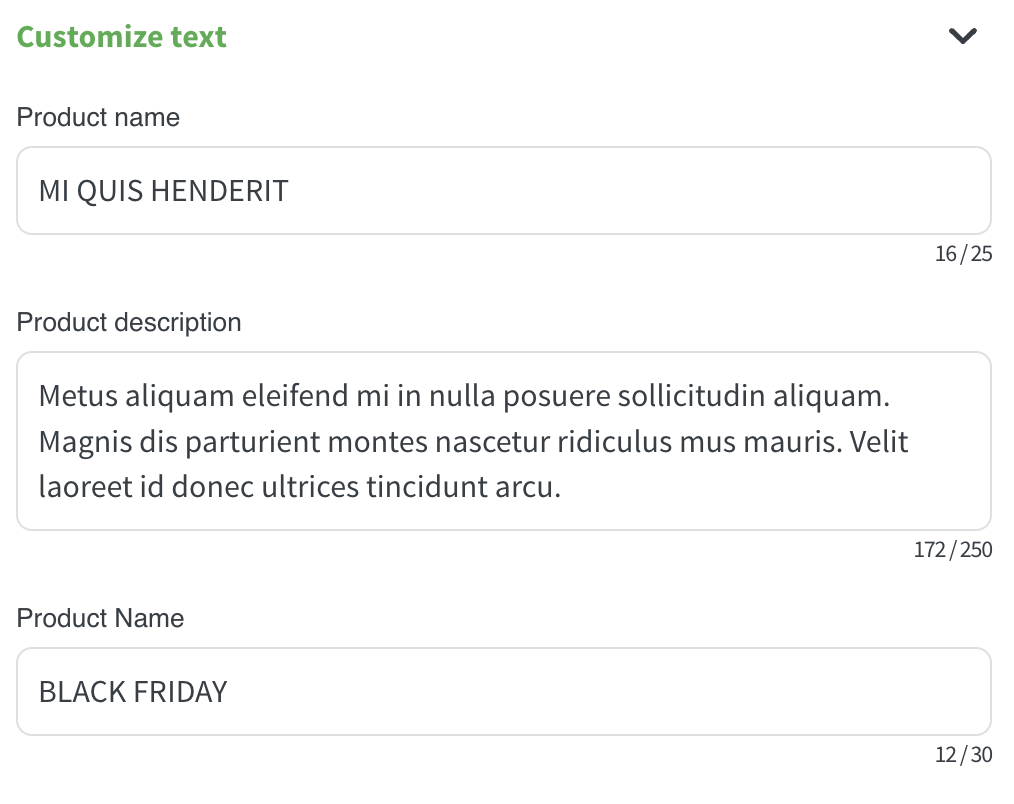
3. Audio - Can be enabled or disabled. There are several pieces of music to choose from that will fit your content.
.png)
4. Other variables (e.g. Brand Logo) - This is an additional image option that is mostly used to add a brand logo.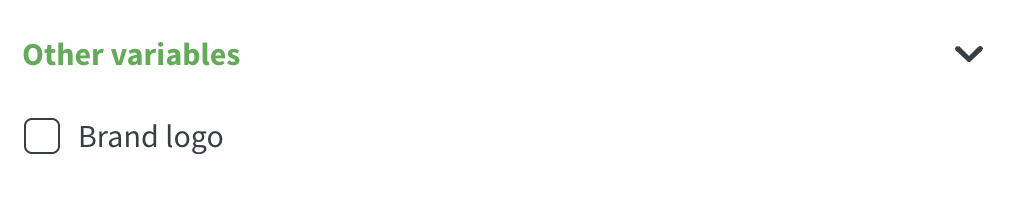
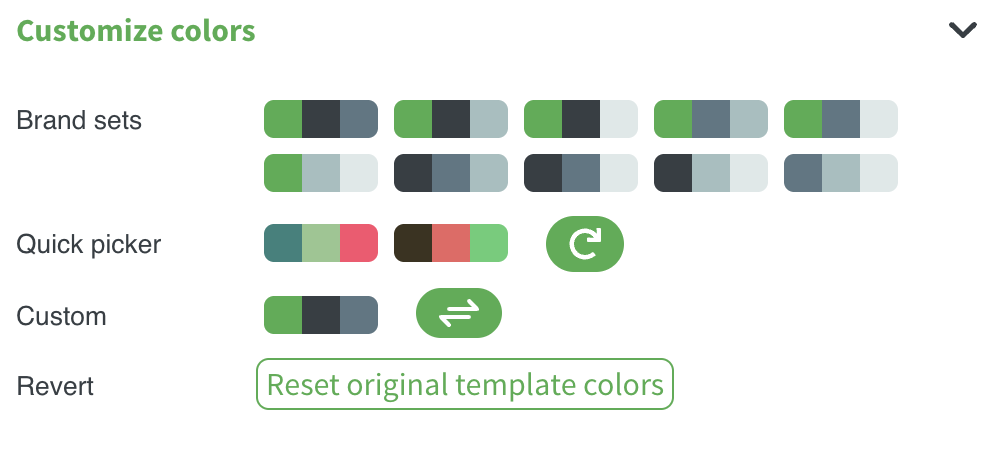
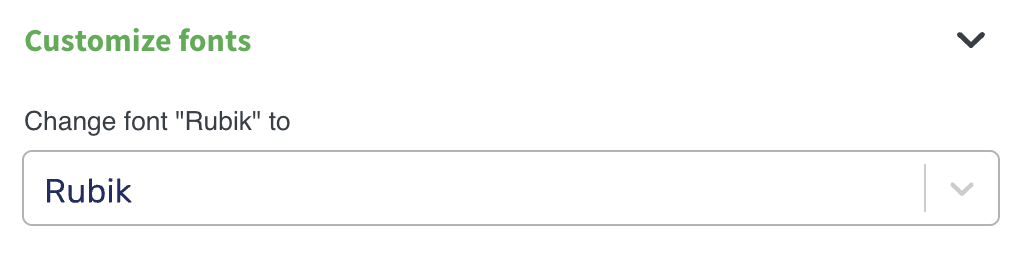
5. Colors and Fonts - You can pick different color combinations or use Hex Codes to specify a color. Fonts can be changed as well.
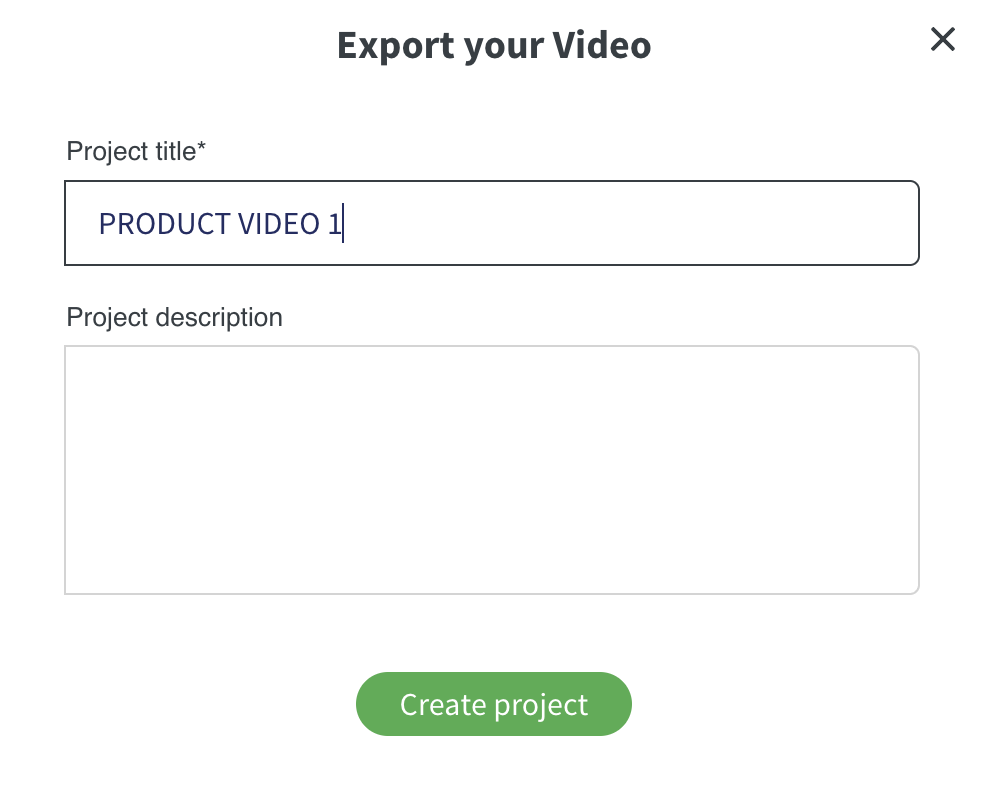
6. Once everything is filled out, you can click on Export Video. You will be asked to put a title and/or a description of the video.