AI Subtitles are not available by default
Reach out to your Customer Success Manager or to our Support Team to enable this feature.
If Live AI Subtitles are available in you LiveStream Pro account, you will see an additional toggle in the Language tab.
.png)
Activating this toggle will generate a transcript of your stream audio, based on the language of the stream you selected above.
Optionally, you can generate translation of your transcript by selecting one or more of the available languages.
Please note
You can’t change settings in the language tab when ingesting a livestream signal. Please keep in mind to finish the language setup before starting your encoder.
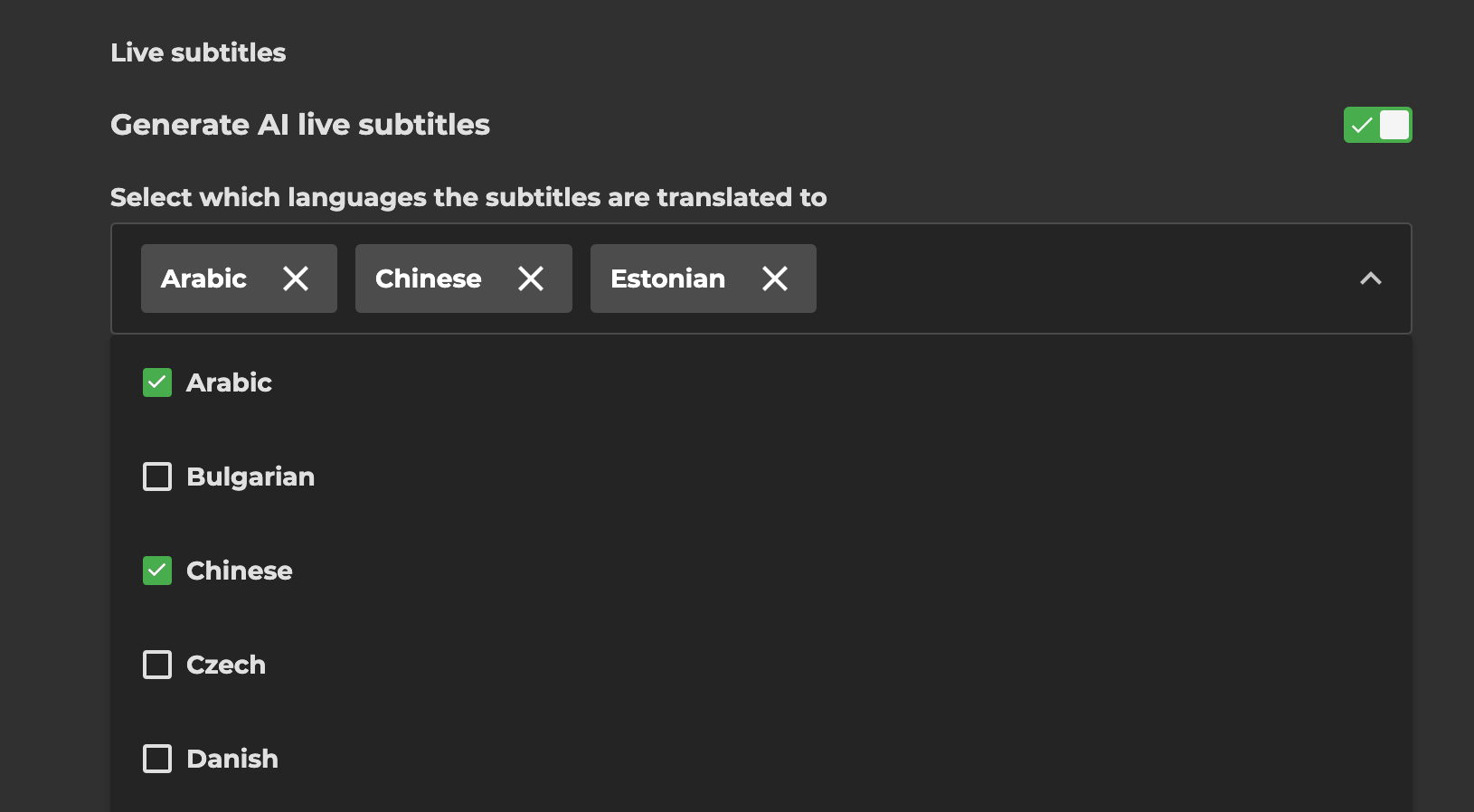
Currently we support translations in 29 languages:
Arabic
Bulgarian
Czech
Danish
German
Greek
English
Spanish
Estonian
Finnish
French
Hungarian
Italian
Japanese
Korean
Lithuanian
Latvian
Norwegian
Dutch
Polish
Portuguese
Romanian
Russian
Slovak
Slovenian
Swedish
Turkish
Ukrainian
Chinese
Configured transcript and translations will be later available as subtitles for your Viewers inside the Player.
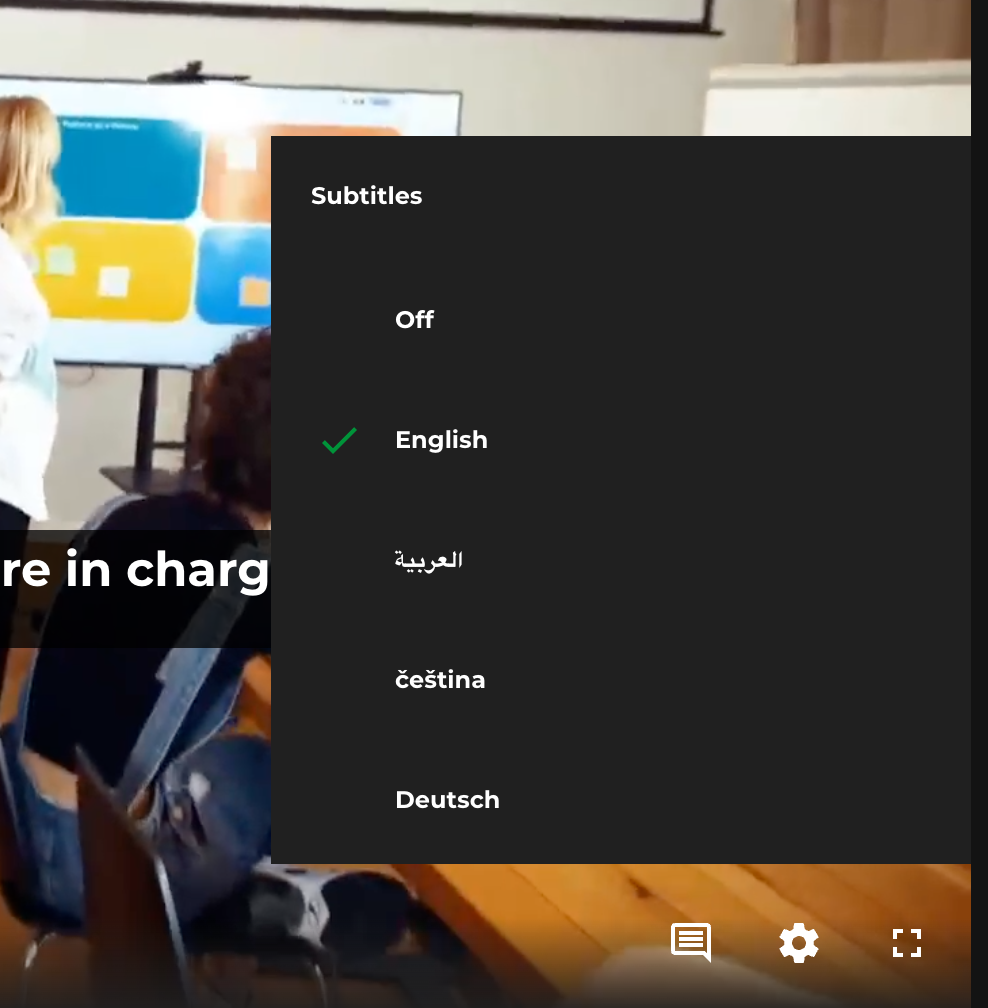
They can be accessed by clicking the “Language” button on the bottom right of the player and selecting one of the options from the menu.
Multilingual events
For multilingual events the AI transcript (source for all other translated subtitles) will be generated for every selected language.
Custom Dictionary (AI Glossary)
The Custom Dictionary feature allows you to improve transcript accuracy for unique names, brands, or specialised terms used in your organisation.
Accessing the Custom Dictionary
Navigate to the Custom Dictionary section in your AI Live Subtitles settings.
Click Add words + to open the dictionary management dialog.
.png)
Adding Words Manually
In the "Add words to AI dictionary" dialog, select Add manually.
Fill in the fields:
Dictionary word (required) — Enter a single word or a multi-word term/name (e.g.
CEO,Project Aurora).Sounds like (optional) — Enter a phonetic pronunciation guide. Separate multiple entries with a comma (e.g.
see-ee-oh). If left empty, a default pronunciation is used.
To add more words in the same session, click + Add word to insert additional rows.
Click Add to AI dictionary to save, or Cancel to discard.
Note:
Each dictionary entry must not exceed six words total across the dictionary word and all its "Sounds Like" entries combined. Entries exceeding this limit will be ignored by the system.
.png)
Importing Words via CSV
In the dialog, select Import with CSV.
Drag and drop your CSV file into the upload area, or click browse files to select it.
CSV requirements:
A maximum of 1,000 words can be imported at once.
Each entry has a maximum of 300 characters.
To include "Sounds Like" phonetic entries, your CSV must follow this structure:
Start with the dictionary word.
Separate the word from its phonetic entries using a semicolon (
;).Add one or more Sounds Like entries, separated by commas (
,).
CSV format examples:
CEO;C.E.O.,see-E-oh
SOC 2;Sock2,Sock-2.png)
Tips
Use the Sounds Like field for acronyms, technical jargon, or names that may be mispronounced by the AI.
CSV import is recommended when adding large batches of terms at once.
Words added to the dictionary apply globally to all sessions using the AI Live Subtitles feature.
Live AI Subtitle Editor
If you want to review and edit the AI-generated subtitles you can activate the editor. Please note that activating the editor delays your livestream to allow you to make changes to the subtitles before they are send to the live feed.
.png)
Please note
Enabling the editor will delay your livestream so that you can make changes to the subtitles before they are sent to the live feed. Therefore, we recommend that you do not use this feature for events with user interaction.
After activating the toggle you can get the link and PIN for the live editor in the event summary and operator.
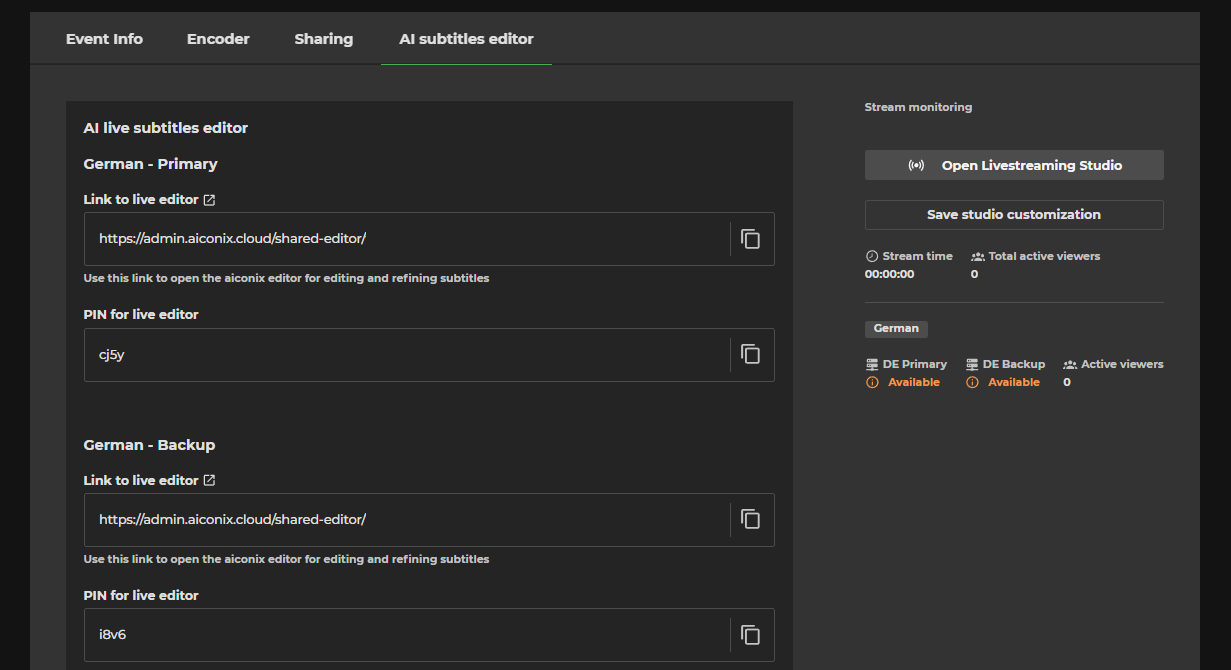
If you want to learn how to use the AI Subtitle Editor click here.