Attendees
In the cockpit, you can see all users that have attended the event. Please note that this list only contains the emails that have been marked as public.
Please note as well that if a user connects several times as a guest, they can be shown multiple times in this list.
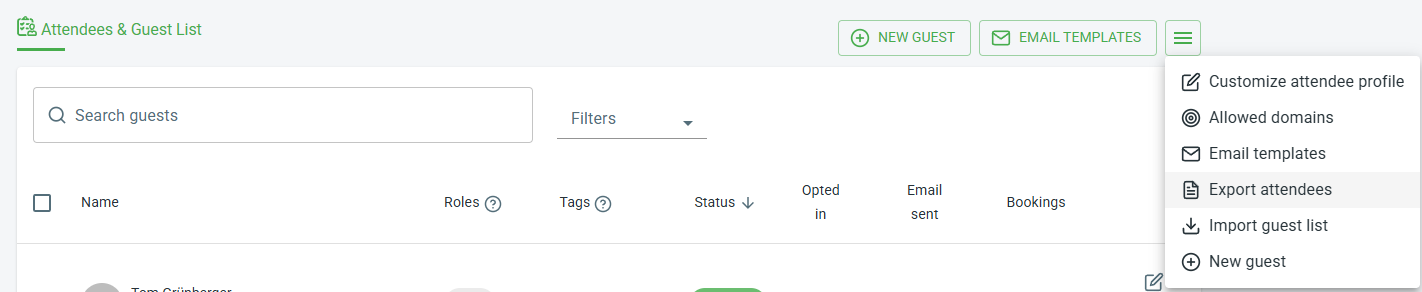
Note that you can now download the list of attendees via the burger-menu on the top right as a .csv file, which also includes all the custom fields from their profiles, including their e-mail addresses. In the table below, we explain in more detail what information may be included in the Attendee Export.
Please note
The participant export is generated dynamically for each event. Therefore, the number of fields may vary from event to event.
Name | Description |
|---|---|
DynamicForms / user information | All columns that start with ‘DynamicForms’ are storing information from the registration form. |
Roles | This column shows the role of the attendee. Available roles are Guest (empty field), Speaker and Host. |
Tags | In this column you can see all tags of the user. |
Status | The current status of the user. Available statuses are: Pre-Registered, Registered, Allowed, Attended, Revoked |
Attended | Boolean if the user attended or not at the time of the export. |
Email sent | Boolean if a mail was sent to the user. |
Unique access link | This column shows the unique access links for every user that is part of the guest list. |
Added at | Time when the user was added to the event. |
Opted in at | Time when the user opted in. |
Attended at | Time when the user attended the event. |
Bookings Count | Count that shows how many bookings this user has booked. |
Bookings | List that shows which bookings users have selected. |
Dashboard
Analytics are essential to improve every event, and that’s why we want to provide you with all the information that you can retrieve about your event. On the dashboard tab you can see:
How many users are online.
How many minutes all your participants have spent online inside your event. Here you can also get a detailed report of all the sessions of your attendees (which areas of the event they have been and how much time they spent there, in an anonymised way).
Which rooms were more popular, as well as a detailed report of all sessions for each room by participant.
Results of the polls you have created as well as who voted on which poll (in case the polls are not anonymous).
On the main part of the dashboard, you can see a timeline with the amount of users that have been connected to your event at each minute.
Please note
Although the data in the dashboard is normally anonymized, you can contact us if you would like to enable full tracking for your event. This is helpful, for example, if your event is a training session, a workshop, or a mandatory event.