How to publish a video
Before you begin
This accordion can only be accessed if a video has been released.
Once you have finished configuring the settings for an uploaded video, you can publish it.
Share with iframe
Open the Publish accordion menu.
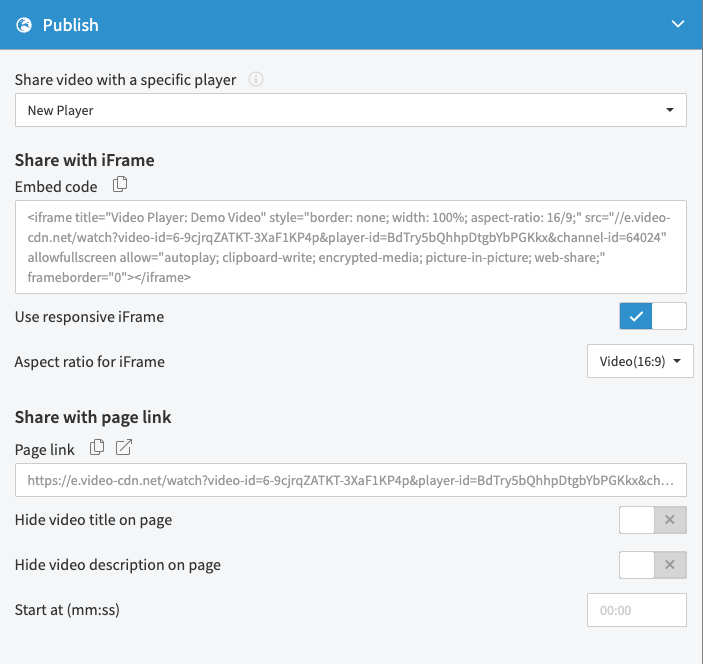
Select a player from the drop-down menu.
Make a player appear first in the drop-down list
The drop-down box contains all standard and user-created players, ordered alphabetically and numerically. To make a player appear first in the list, give it a name that starts with a letter or number that comes first alphabetically (e.g. "1 My Favorite Player" or "*Default Player").
Copy the embed code by clicking on the correspondent copy icon.
Paste the embed code into a website to complete the publishing process.
iframe configuration
In addition to copying and pasting the iframe code to embed videos, you can configure the iframe easily in the publish tab.
You can choose if you want the iframe to be responsive and, if needed, change the aspect ratio of the iframe to match different video formats. That way you can adjust the embed code to best fit the use case.
Share with page link
The page link is a configurable pre-made webpage where the player is already embedded. This page link can be used to preview the video, to send it to a colleague for a quick review or to just link to this page in cases where direct embeddings on webpages are not needed, not wanted or not possible.
If you want to preview the video, click on the page link icon to launch the preview-URL in a new tab. Alternatively, you can use the copy button to copy the URL and paste it somewhere where you want to link to this page.
Page link configuration
To adjust the page to your needs, you are able to:
Hide video title on the page
Hide video description on the page
Change the start time of the video on the page to something different than the default start time 00:00 (useful if you want to point the user to a specific point in the video)