Before you begin
Use the LiveStream Pro Operator to start a livestream, check the status of a livestream, moderate Q&A, and to access the end user view.
Description
Once your event has been created, you can access the Livestream Studio to control your event. The Studio provides an overview of the livestream event, allows you to change the status of an event to live, monitor the status and stream quality of a livestream, and moderate question and answer sessions if it is enabled in the manager app.
Access
Open the newly created event from the event list.
On the left menu, click on Studio.
Event Info
The operator view comprises several areas, all described in the table below:
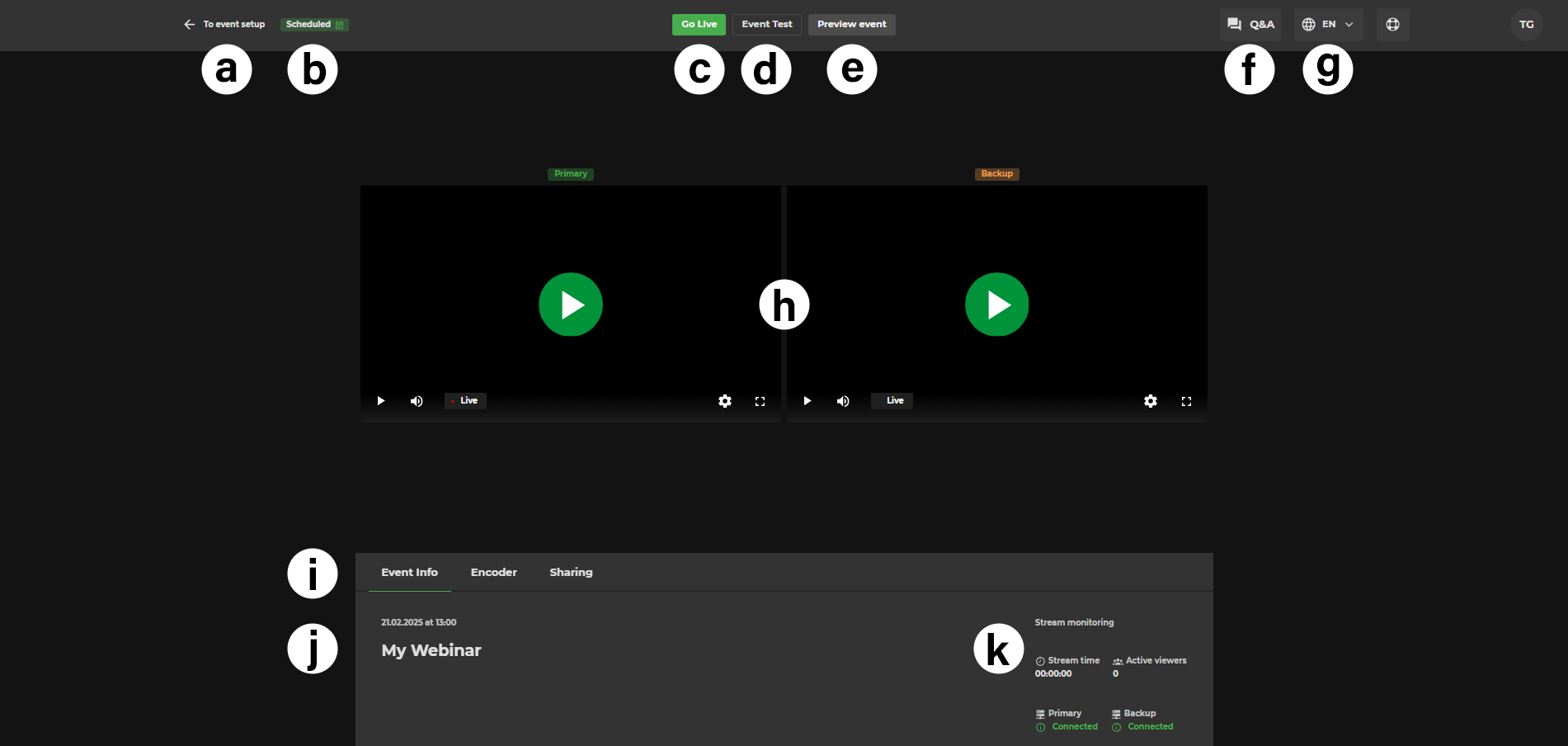
Legend | Description |
|---|---|
a. | Return to event setup |
b. | Status of the event (live or offline) |
c. | Go live button/Stop livestream button (appears when event is live). |
d. | Start an event test |
e. | Viewer preview |
f. | Messaging (if enabled); Example shows moderated Q&A |
g. | UI Language |
h. | Preview of connected primary and backup stream signal |
i. | Tabs for
|
j. | Event information tab containing
|
k. | Stream monitoring information, including
|
Stopping the livestream
The livestream cannot be restarted after it has been stopped. Therefore a pop-up window will remind you to only stop the livestream if you are sure it is over, when pressing ‘Stop Streaming’.
Encoder
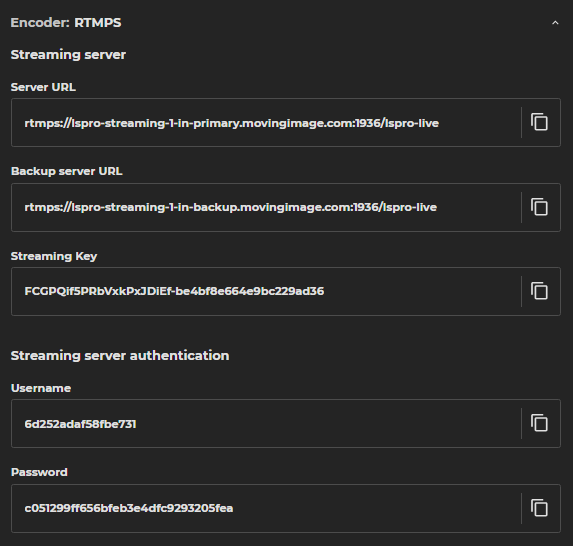
The encoder section displays streaming information, such as the streaming URL.
If you choose RTMPS as the streaming protocol, the following information will be displayed:
Server URL
Username
Password
Streaming key
Language and stream key
Note that a separate streaming key is required for each language.
Streaming to Primary and Backup Servers
IMPORTANT: Connect both your primary and backup streams before going live. This will ensure that your live stream continues uninterrupted if your primary stream fails.
Note that you cannot configure a backup stream after your event has gone live.
The Viewer application will automatically switch to the backup stream if the primary stream fails.
Producers and Viewers do not need to do anything to trigger the automatic failover.
Each event can be streamed to both a primary and backup server. The Operator will show you the status of both servers, and you can choose to preview both streams or just the primary stream.
If you go live without the backup stream, there will only be the primary stream preview available in Studio.
However, if the backup stream is enabled, viewers watching the backup stream will be automatically switched to the primary stream if the backup stream fails.
This ensures that your live stream will continue uninterrupted even if one of the servers fails.
To ensure maximum availability, our primary and backup servers are located in different data centers in Europe. If the primary server goes down, the application will automatically switch to the backup stream without any interruption.
Streaming only to Backup Server
You have the option to go live using only the backup ingest if the primary ingest is unavailable or not connected.
Going Live Without a Primary Ingest
Click Go Live in the event toolbar.
If no primary ingest is detected, a confirmation dialog will appear: "Go live without a primary ingest?"
Review the listed limitations, then click Go live with only backup to proceed, or Cancel to return and connect the primary ingest first.
Recommendation
Connecting the primary ingest before going live is strongly advised to ensure full functionality.
Limitations When Using Backup Only
Be aware of the following restrictions when going live without a primary ingest:
Stream recordings may not be available after the event.
Auto-failover will not be available.
Automatic switch to On-demand state might not be possible.
Download of SRT subtitle files is not possible.
.png)
Notes
Going live without a primary ingest is not blocked — the event can still start.
The confirmation dialog is shown for Go Live only and does not appear when using Event Test Mode.
Sharing
The sharing section contains both the sharing link that you can share with the livestream participants and the embed code:
.png)
Presentation
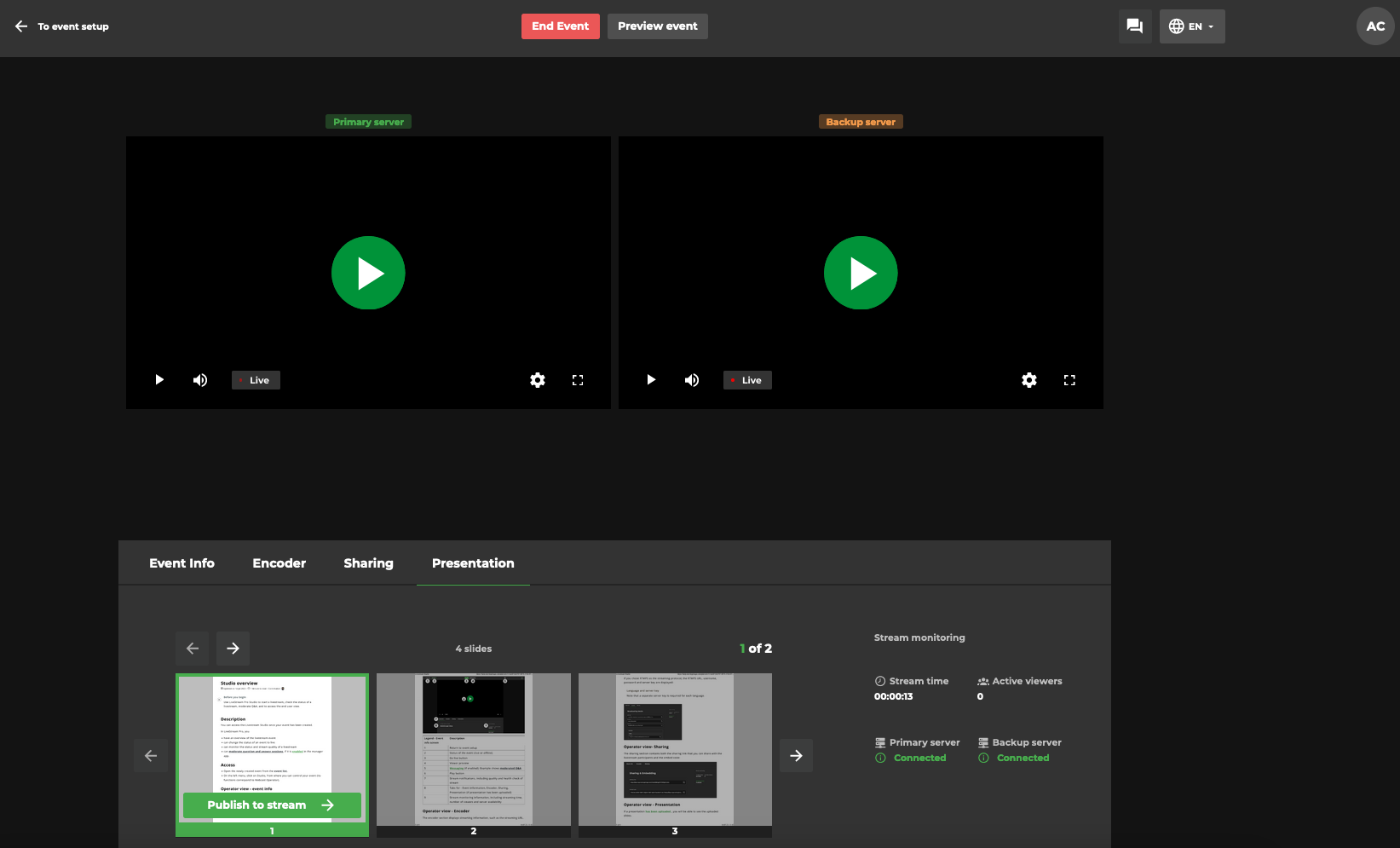
If a presentation has been uploaded, you will be able to see the uploaded slides.
If the event is live, you can publish slides:
Next step - Stream to OBS
Find out how to stream from different sources to your OBS account in the following article.